Introduction
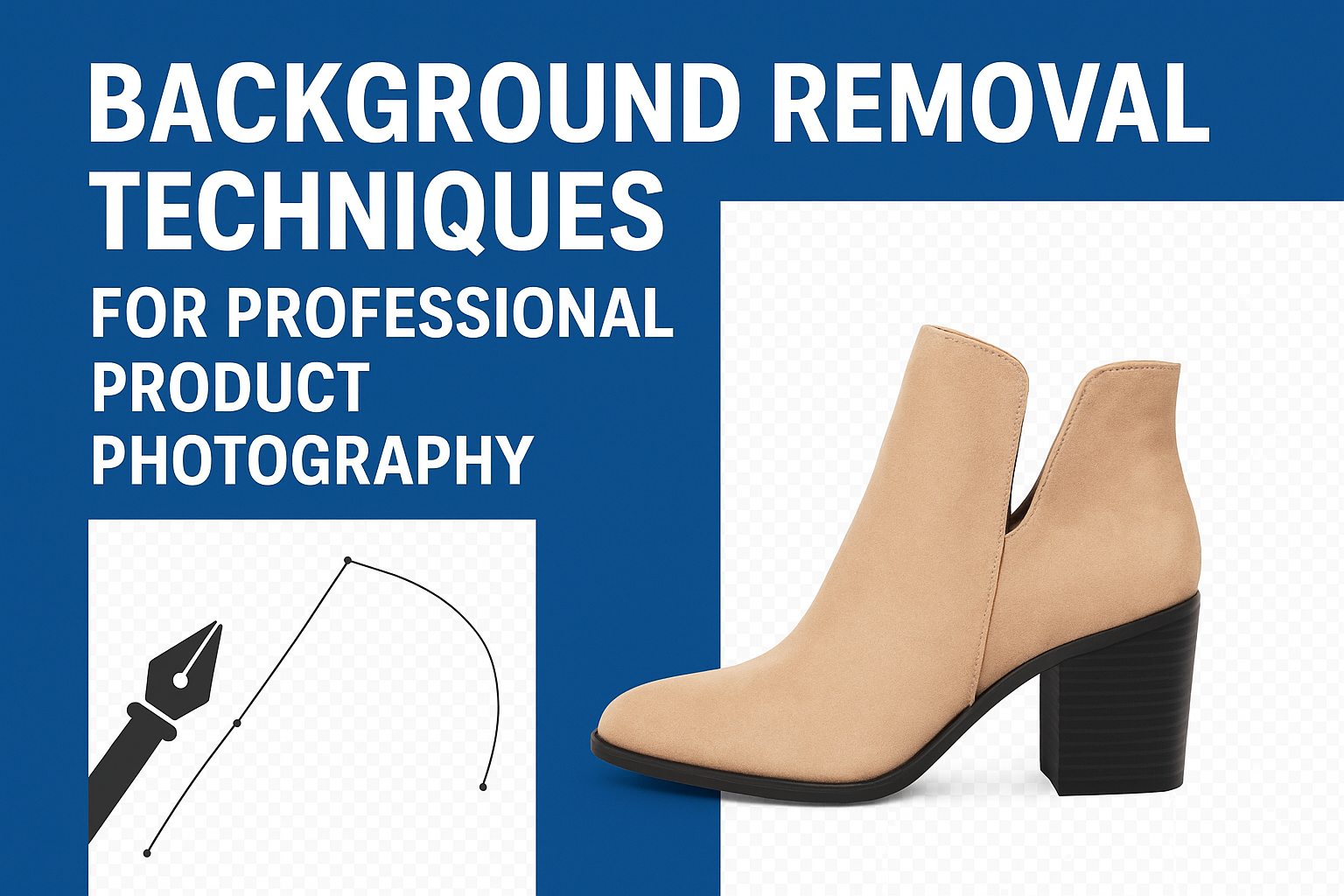
In the world of eCommerce and digital marketing, product photography plays a vital role in influencing purchase decisions. A clean, distraction-free background helps products stand out and look professional. Whether you are a freelance photo editor, a brand owner, or a professional photographer, mastering background removal techniques is essential for creating high-quality product images.
In this blog, we’ll explore the most effective background removal techniques, from basic manual methods to advanced AI-based tools. By the end, you’ll know which technique suits your workflow best and how to achieve professional, consistent results every time.
Why Background Removal Is Important for Product Photography
Before diving into the techniques, let’s understand why background removal is so crucial in professional product photography.
1. Enhances Visual Appeal
A clean background ensures that customers focus solely on the product. It eliminates distractions, highlights product details, and creates a polished, studio-quality look.
2. Maintains Brand Consistency
E-commerce platforms like Amazon, Shopify, and eBay often require products to have white or transparent backgrounds. Consistent image styling helps build a cohesive brand identity.
3. Boosts Conversion Rates
Professional, well-edited product photos significantly improve click-through rates and conversions. Shoppers are more likely to trust brands that present clear, high-quality visuals.
4. Improves Image Versatility
A product with a transparent background can easily be placed on any background, advertisement, or banner without re-editing.
Top Background Removal Techniques Used by Professionals
Let’s explore the most popular and effective methods to remove backgrounds from product photos, ranging from manual to automated tools.
1. Manual Background Removal Using the Pen Tool (Clipping Path)
Overview
The Pen Tool in Adobe Photoshop is a professional’s go-to technique for precise background removal, especially for products with defined edges.
How It Works
-
Open your image in Adobe Photoshop.
-
Use the Pen Tool (P) to create a path around the product.
-
Once the path is complete, right-click and select “Make Selection.”
-
Invert the selection and delete the background layer or create a mask.
Advantages
-
High precision and clean edges.
-
Perfect for products like shoes, bottles, jewelry, and electronics.
Disadvantages
-
Time-consuming, especially for complex shapes.
-
Requires advanced Photoshop skills.
Pro Tip
For faster editing, use shortcuts and layer masks instead of deleting backgrounds permanently. This allows non-destructive editing.
2. Using the Magic Wand and Quick Selection Tools
Overview
Photoshop’s Magic Wand and Quick Selection Tools are great for beginners who need quick background removal on high-contrast images.
How It Works
-
Select the Magic Wand Tool (W).
-
Click on the background area; Photoshop automatically selects similar pixels.
-
Adjust the tolerance level for more accurate selection.
-
Press Delete or use a Layer Mask to remove the background.
Advantages
-
Quick and easy for simple backgrounds.
-
Great for batch editing or eCommerce platforms requiring volume processing.
Disadvantages
-
Not suitable for complex or detailed product edges like hair or transparent objects.
Pro Tip
Combine the Quick Selection Tool with the Refine Edge Brush for smoother edges and better results.
3. Layer Masking for Non-Destructive Editing
Overview
Layer masking allows you to hide or reveal parts of a layer without permanently deleting pixels — ideal for products with soft or semi-transparent edges.
How It Works
-
Add a Layer Mask to your image layer.
-
Use a soft brush (black to hide, white to reveal) to manually refine edges.
-
Combine with Select and Mask in Photoshop for detailed control.
Advantages
-
Non-destructive editing — you can always revert changes.
-
Best for refining details like hair, fabric, and glass edges.
Disadvantages
-
Requires manual precision.
-
Time-consuming for batch processing.
Pro Tip
Adjust brush opacity and flow to blend edges naturally, especially for clothing and translucent items.
4. AI-Based Background Removal Tools
Overview
AI tools have revolutionized photo editing by offering instant background removal with just one click. Platforms like Remove.bg, Adobe Express, and Fotor use machine learning to detect and isolate subjects automatically.
How It Works
-
Upload your image to an AI-powered background remover.
-
The algorithm automatically detects the subject and removes the background.
-
Download the transparent PNG or replace it with a custom background.
Advantages
-
Fast and efficient for bulk editing.
-
Doesn’t require design expertise.
-
Ideal for eCommerce stores handling hundreds of product photos.
Disadvantages
-
May struggle with complex backgrounds or fine details.
-
Less control compared to manual editing.
Pro Tip
Use AI tools for first-pass editing, then refine edges manually in Photoshop for a professional touch.
5. Using Channels and Blend Modes
Overview
This technique is ideal for removing backgrounds from products with complex or fine details (like hair, fur, or transparent materials).
How It Works
-
Open the Channels panel and find the channel with the highest contrast between the subject and background.
-
Duplicate that channel and adjust Levels for higher contrast.
-
Use a brush or selection tool to clean up the mask.
-
Convert the channel into a Layer Mask.
Advantages
-
Great for translucent or reflective objects.
-
Offers full control over tones and transparency.
Disadvantages
-
Advanced technique — not beginner-friendly.
-
Requires a solid understanding of Photoshop channels.
Pro Tip
Combine channel-based selections with Refine Edge for flawless results on hair or smoke effects.
6. Using Eraser Tools for Quick Edits
Overview
Though considered basic, the Background Eraser Tool and Magic Eraser Tool can be helpful for quick, low-detail image edits.
How It Works
-
Select the Background Eraser Tool.
-
Adjust brush size and tolerance.
-
Paint over the background area to remove it interactively.
Advantages
-
Fast and intuitive.
-
Good for simple, single-color backgrounds.
Disadvantages
-
Destructive editing (permanent).
-
Hard to control on detailed products.
Pro Tip
Always duplicate your image layer before using eraser tools to prevent data loss.
Common Mistakes to Avoid During Background Removal
Even experienced editors make common errors during background removal. Avoid these to ensure your images remain high quality and professional:
-
Over-smoothing edges – Causes unnatural, unrealistic borders.
-
Ignoring shadows – Realistic shadows maintain product grounding.
-
Color fringing – Fix halos around product edges using the “Defringe” option or manual brushing.
-
Using low-resolution images – Always edit high-resolution photos for clean results.
-
Not using masks – Deleting backgrounds permanently reduces flexibility.
Best Tools for Background Removal in Product Photography
Here are the top-rated tools professionals use for efficient, high-quality results:
| Tool | Best For | Skill Level |
|---|---|---|
| Adobe Photoshop | Precision and professional retouching | Advanced |
| Remove.bg | Instant AI-based removal | Beginner |
| Canva Pro | Social media and eCommerce visuals | Beginner |
| Clipping Magic | Detailed edge refining | Intermediate |
| PhotoScissors | Quick transparent backgrounds | Beginner |
Choosing the Right Background Removal Technique
Your choice depends on factors like time, budget, product type, and quality requirements.
| Scenario | Recommended Technique |
|---|---|
| Simple, solid background | Magic Wand or AI tools |
| Complex products with fine edges | Pen Tool or Channels |
| High-volume eCommerce editing | AI + Manual Refinement |
| Transparent or reflective items | Layer Masking or Channels |
| Professional retouching for premium brands | Pen Tool or Manual Masking |
Conclusion
Background removal is an essential skill in professional product photography, directly influencing the perceived quality of your brand. From manual clipping paths to advanced AI automation, every technique has its place — the key is knowing which method fits your project.
If you want your product images to stand out, invest in mastering precise clipping path techniques, layer masking, and AI-assisted workflows. The cleaner your product images, the more trustworthy and appealing your brand becomes in the competitive eCommerce market.